Introducing Chat
The parts of Chat: the message box, the starting actions, voice input, and attachments.
Chat is where you ask Nalar questions in plain language. It opens when you sign in, and every conversation you start there is saved so you can come back to it.
Everything you send goes through one message box. Typing, voice, pasted text, and attached files all add to the same draft, and none of them replaces what is already there.
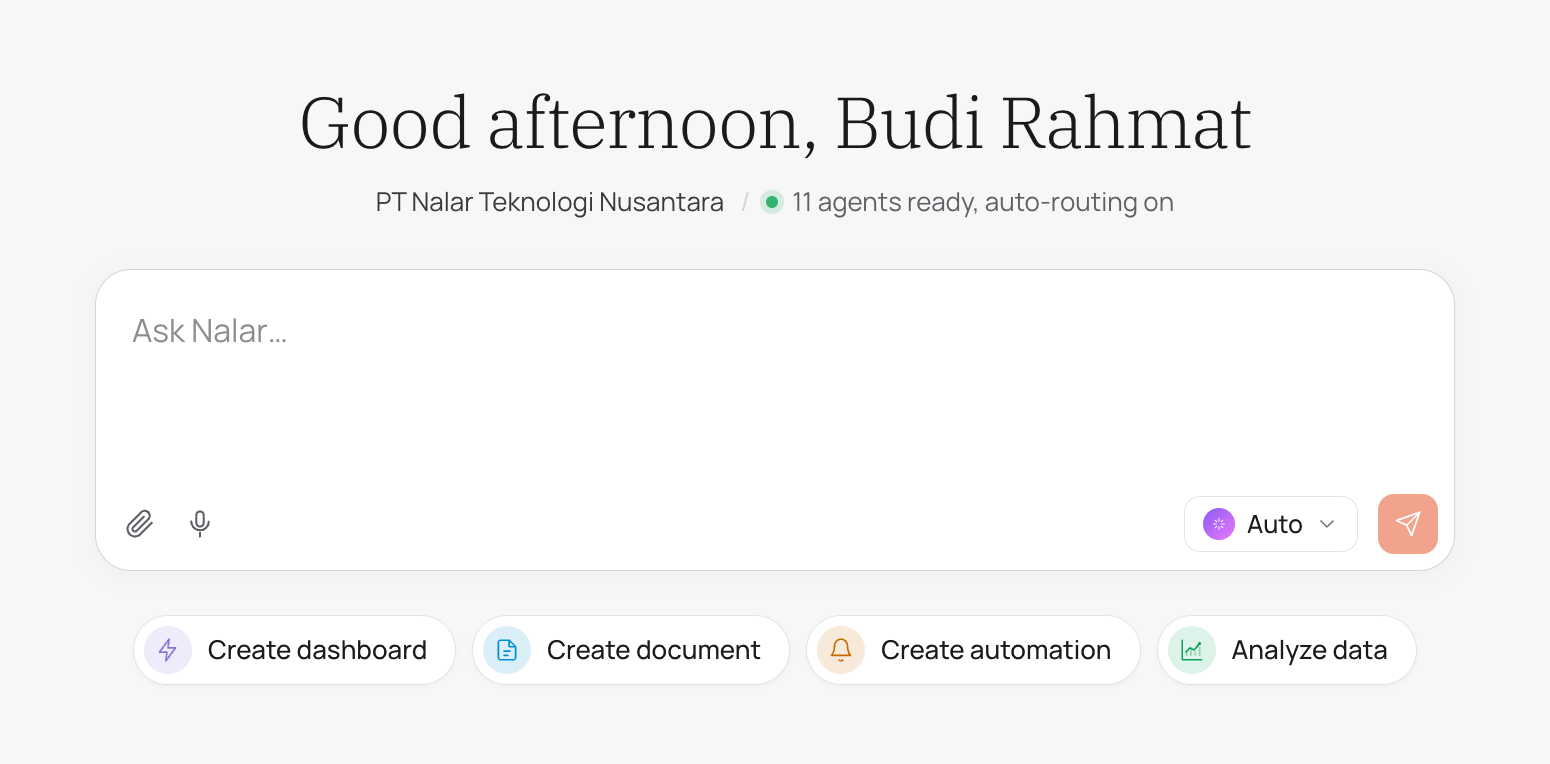
Chat home
The greeting names your workspace and how many Agents are ready for you. That count includes only the Agents you can use, so a colleague may see a different number.
Below the message box are four starting actions:
| Action | What it does |
|---|---|
| Create dashboard | Opens Dashboards so you can build a dashboard from a question. |
| Create document | Opens Documents to start a new file. |
| Create automation | Opens Automations so you can set up a recurring or one-time message. |
| Analyze data | Puts "Analyze " in the message box for you to finish. |
An action appears only when that part of Nalar is available to you. Analyze data never sends anything on its own. If you already typed something, your text is kept.
The message box
Write your question the way you would ask a colleague, then press Enter or the send button. Your draft stays editable until you send it.
- Long pastes. When you paste a long block of text, such as a report or a table copied from a spreadsheet, it appears as a card above the message box. Open the card to read the full text, or remove it without losing what you typed. A pasted block is part of your message, not a file, so it doesn't count toward your attachment limit.
- Message length. A single message, including pasted text, can be up to 100,000 characters. Above that, Send is unavailable and Chat shows how long the message is.
- While Nalar is answering. You can start writing your next message, but you send it after the answer finishes or after you stop it.
Voice input
Select the microphone in the message box to speak your question instead of typing it. Your words are added to the end of the draft, so you can type part of a question, speak the rest, and record more than once.
- With live recognition, words appear while you speak. Otherwise the recording is transcribed when you finish.
- When you finish, Nalar may tidy up the transcript. You can still edit it before sending.
- Cancelling a recording discards only the speech from that recording. Text you typed is kept.
- If transcription fails, your earlier text stays and nothing is sent.
You can't send while a recording is still being transcribed.
Attachments
Attach a file to ask about it, such as "Summarize the attached contract" or "What does this chart show?".
| Supported | Formats |
|---|---|
| Documents | PDF, DOCX, PPTX, XLSX, CSV, TXT, MD |
| Images | PNG, JPG/JPEG, WebP, GIF |
Limits:
- Each file can be up to 20 MB. Large images may be compressed in your browser before upload.
- A conversation can hold up to three uploaded files in total. You can add them across several messages until you reach three.
- If you select more than three files at once, Chat asks you to remove some before sending. It doesn't pick a subset for you.
- Other formats, such as HEIC, SVG, BMP, or audio files, are rejected. Your draft is kept so you can choose another file.
When you refer to "this file" or "the attached image", Nalar reads the file you attached to that message.
Attachments are private to you. Only you can open or download a file you attached, even if you share the conversation. Attaching a file doesn't give Nalar access to any data your role doesn't already cover.
Who answers
The selector next to the send button chooses which Agent answers. It starts on Auto, which lets the Master Agent pick the Agent that fits your question. You can also pick an Agent yourself. Ask about your business data explains both options.