Profile and sign-in
See the identity and access Nalar uses for your account, and keep your password up to date.
Your profile shows the facts Nalar uses to decide what you can see. You can read it, but you can't edit it. Your company keeps these details up to date.
Open your profile
Select your name at the bottom of the sidebar, then select Profile.
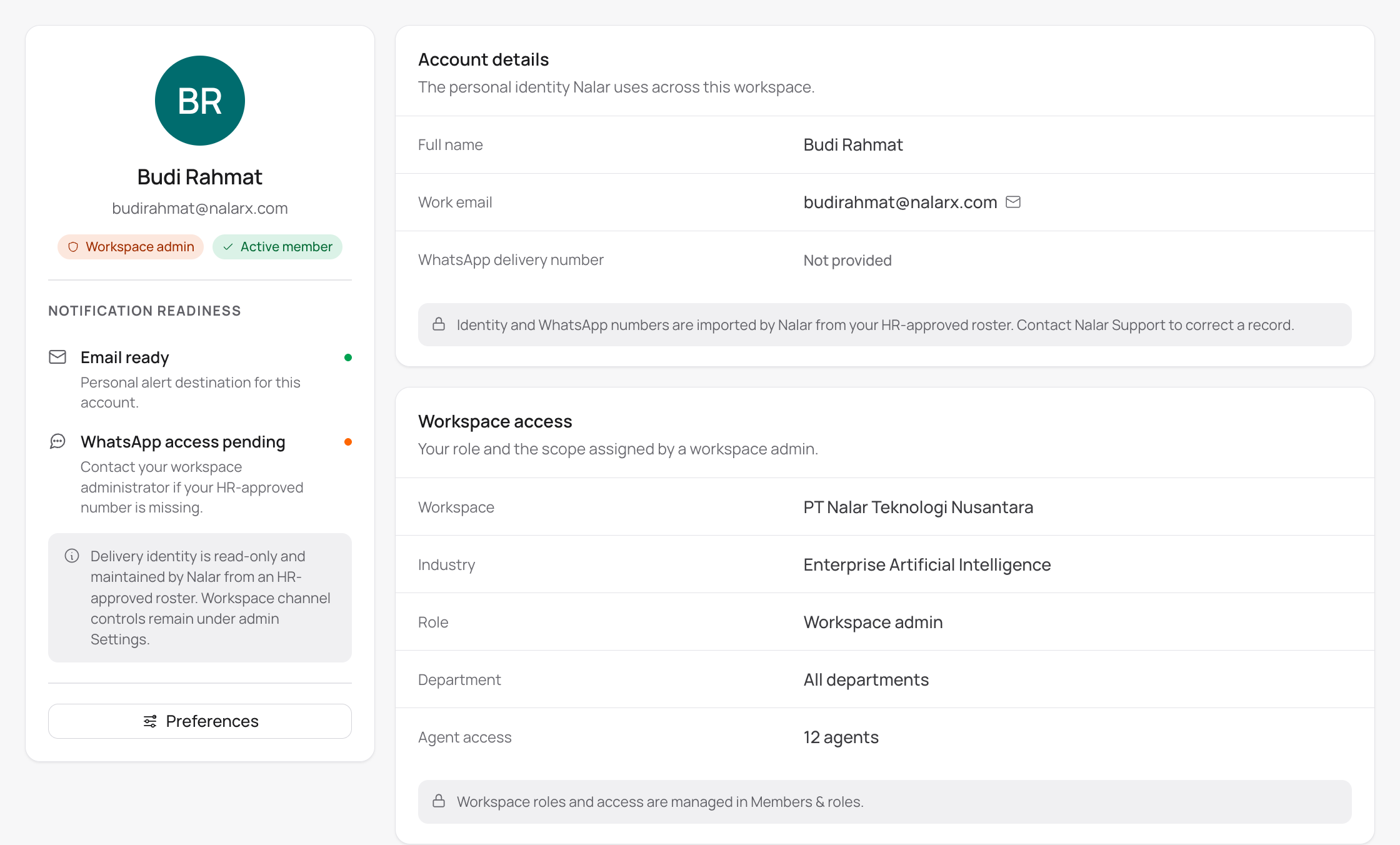
What your profile shows
| Detail | What it means |
|---|---|
| Name and work email | Who you are in this workspace |
| Role | Workspace Owner, Workspace Admin, Department Head, or Staff |
| Workspace and department | Where you sit in the company. Owners and Admins cover every department. |
| Agents | How many Agents you can use, with a link to see them |
| Notifications | Whether your work email and WhatsApp number are ready to receive messages from Nalar |
If something is wrong, such as your name, department, or phone number, contact your company's HR team or whoever manages your workspace. You can't replace your work email or phone number with a personal one.
Notifications showing as ready means Nalar can reach you there. It doesn't change which Automations or data you can use.
Change your password
How you change your password depends on your role.
- Workspace Owners and Admins: open Settings, then SSO & Auth. Enter your current password, then the new one twice. If you've only ever signed in with Google, you'll see Set password instead, with no current password needed.
- Everyone else: sign out, then use Forgot password? on the sign-in page. Signing in to Nalar walks through it.
A new password needs at least 8 characters, with an uppercase letter, a lowercase letter, a number, and a symbol, and no spaces.
Changing your password doesn't change your role or access.