Signing in to Nalar
Accept your invitation, sign in, reset a forgotten password, and sign out.
Nalar has no public sign-up. Your company and the Nalar team set up your workspace, and your workspace admin arranges an account for you. Once that's done, you'll receive an invitation by email.
Accept your invitation
The invitation email comes from Nalar and names the workspace you're joining. Open the link in it.
If you're new to Nalar, the link opens a short form. Your email address is already filled in and can't be changed. Enter your name, then choose a password and type it again to confirm. The password needs at least 8 characters, including a lowercase letter, an uppercase letter, a number, and a symbol.
If you already have a Nalar account with that email, the link signs you in and adds you to the workspace. Your existing password stays the same.
After you join, a welcome page shows the workspace, your role, and the Agents you can use. Continue to open Nalar.
No Agents listed?
Your account works, but your access hasn't been set up yet. Ask your workspace admin to check it with the Nalar team.
Sign in
Go to app.nalarx.com. Sign in with your email and password, or select Continue with Google if your company uses Google accounts.
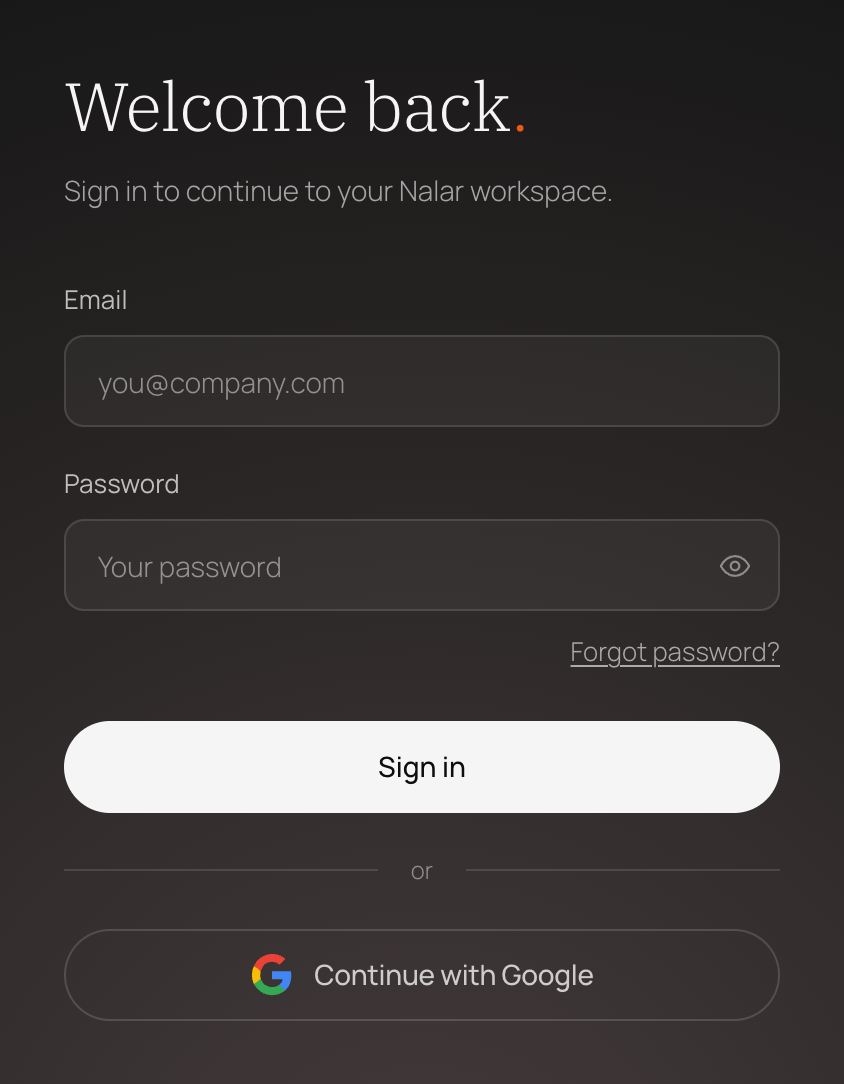
Google sign-in only works for an email that already has a Nalar account. It doesn't create a new one.
If a page in Nalar asked you to sign in, you'll return to that page afterwards.
Reset a forgotten password
Request a reset link
On the sign-in page, select Forgot password?, enter your work email, and select Send reset link.
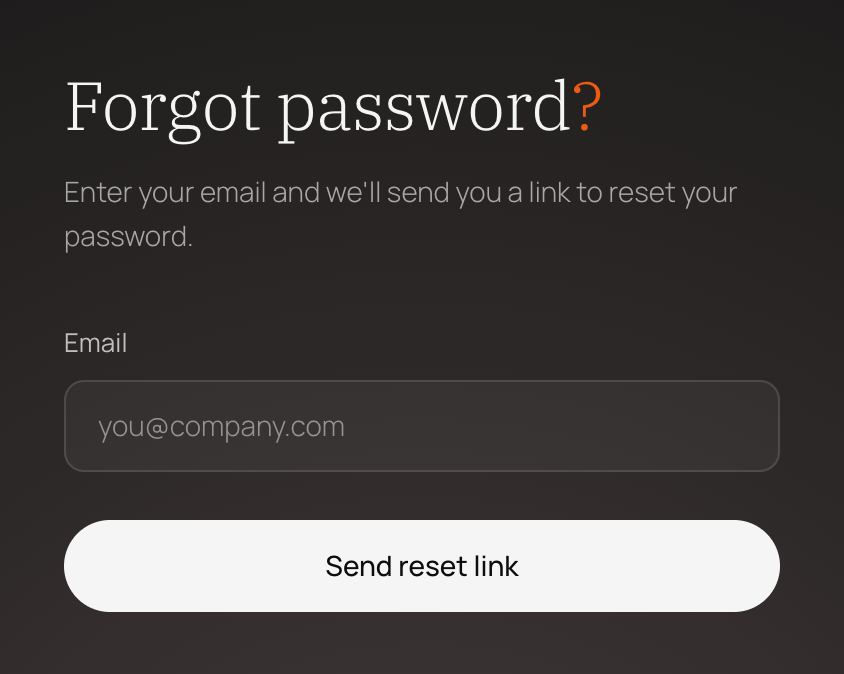
You'll see the same confirmation whether or not that email has an account. This keeps other people from using the page to check who uses Nalar.
Choose a new password
Open the link in the email, then enter a new password and confirm it. The link works once, and only for a limited time. If it has expired, request a new one.
Sign in again
After the reset, Nalar takes you back to the sign-in page. Sign in with your new password.
If you always sign in with Google, you don't have a Nalar password to reset. Use Continue with Google instead.
Sign out
Select your name at the bottom of the sidebar, then select Sign out. Nalar returns you to the sign-in page, and pages you had open can't be reopened from your browser history.
If you can't get in
| Problem | What to do |
|---|---|
| Nalar doesn't accept your email or password | Check both, or reset your password. |
| You signed in but can't enter the workspace | Your membership may have ended or not be ready yet. Ask your workspace admin. |
| The invitation link says it has expired or was already used | Ask your workspace admin for a new invitation. |
| You signed in with the wrong account | Sign out, then sign in with the email your invitation was sent to. |