Your first Automation
Describe a scheduled update in plain language, review the form Nalar fills in, and create it.
The quickest way to set up a Recurring or One-time Automation is to describe it in one sentence. Nalar fills in the form for you, and nothing runs or gets sent until you review it and select Create automation.
To set up a Signal on a dashboard metric instead, see Metric alerts.
Open a new Automation
Go to Automations and select Add automation.
Describe what you want
In Describe the automation, write what you want, when, and how you want to receive it:
Every Monday at 8am, send me a summary of last week's sales by region on WhatsApp.On 1 December at 9am, email me a reminder to submit the Q4 budget review.You can also dictate it. Your words appear as you speak; cancelling the recording puts back the text you had before.
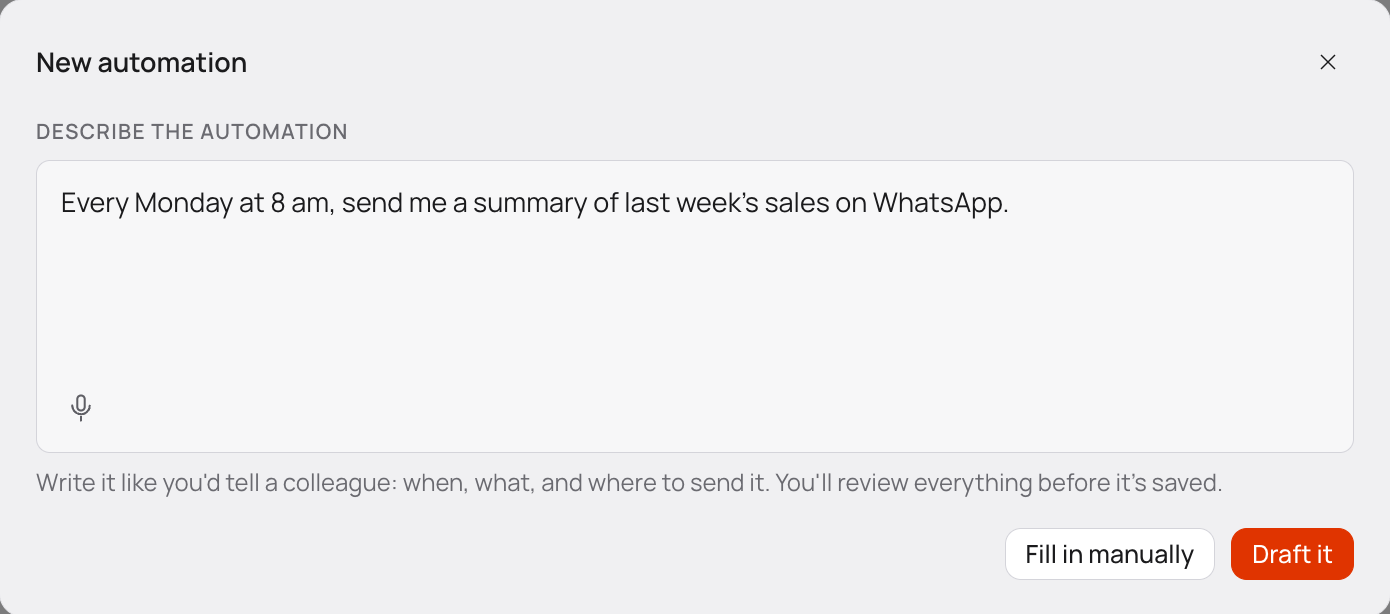
Select Draft it. Nalar proposes a name, an instruction, a schedule, an Agent, and the channels you asked for. To skip the description and fill everything in yourself, select Fill in manually. This fills in the form only. Nothing is created yet.
Review What to send
Check the name and the Agent. The Agent can be Auto, which picks a suitable Agent you have access to, or one Agent you choose. An Agent you choose stays selected until you change it.
Then read the message. This is the instruction the Agent carries out on every run, so write it the way you would ask in Chat. The message can't change the schedule. Writing "every ten hours" in it doesn't change when the Automation runs; the schedule you set below does.
Review When to run
Choose Recurring or One-time.
- Recurring runs Daily, on Weekdays, Weekly on the days you pick, or Monthly on a day from 1 to 28, at the time you set. Monthly stops at 28 so the day exists in every month.
- One-time runs once, at a date and time in the future.
The form shows the schedule with its timezone. If you asked for a schedule the form can't represent, Nalar points it out instead of picking a different one.
Review Where to send
Choose Email, WhatsApp, or both. The recipient is always you, so there is no recipient field. A channel that isn't ready for you is marked unavailable with the reason. Channels and test fire explains what to do about it.
A sentence at the bottom of the form sums up the schedule and channels. Read it once before you create.
Refine if needed
To adjust the draft, type another instruction, such as "make it 7am instead" or "email only". Nalar changes what you mention and leaves the other fields as they are. You can also edit any field by hand.
Create it
Select Create automation. Nalar checks every field first. If something needs fixing, the reason appears next to that field and the rest of your input is kept.
A valid Automation is created as Active and appears in your list with its next run time.
Writing a good instruction
- Name the period. "Last week's sales" or "month to date" gives a clearer answer than "recent sales".
- Say what shape you want. "Three bullet points" or "a table by region" tells the Agent how to lay out the answer.
- Keep one purpose per Automation. A summary and a reminder are easier to manage as two Automations.
The instruction only defines the work for each run. It can't create another schedule, add recipients, or reach data you don't have access to.